
What Are API Integrations?
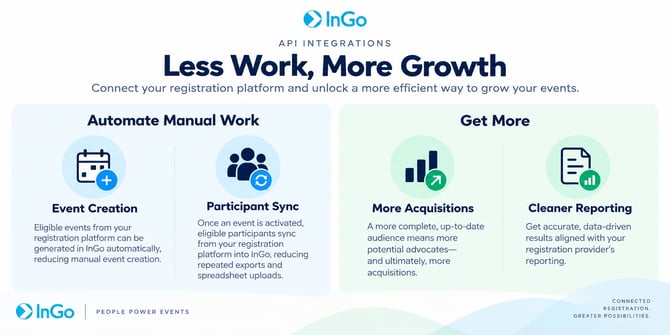
InGo API Integrations connect your registration platform directly to your InGo Community.
Once connected, InGo can automatically identify eligible events from your registration platform and create them in InGo. When an event is activated, eligible participant data syncs into the appropriate InGo Groups.
This reduces manual event creation, spreadsheet uploads, and participant-data maintenance.
What to Know Before You Connect
Before setting up an API Integration, keep these key behaviors in mind:
- One-way sync: Data flows from your registration platform into InGo. InGo has read-only access and does not write data back to your registration platform.
- Daily sync: InGo automatically syncs data from your registration platform once every 24 hours.
- Manual Group changes are preserved: If you manually move a participant to a different InGo Group, the next API sync will not overwrite that change.
- Participant removals vary by platform: For Bizzabo, Cvent, RainFocus, and Swoogo, InGo automatically removes participants who no longer meet the platform's registered criteria. For other supported platforms, contact InGo Support to remove participants who should no longer be included.
- Event filters remain active: Filters selected during event setup remain in place for future syncs until you update them.
- One API sync per Community
How It Works
The typical integration flow is:
Connect Platform → Authenticate → Filter Events → Sync Events → Activate Event → Map Groups → Ongoing Sync
There are two important controls within this process:
-
Event Filters determine which events sync to your InGo Community (in perpetuity).
-
Group Mapping determines where participants from those events are organized in InGo.
Supported Platforms
InGo currently supports API Integrations with:
- ASP
- Bizzabo
- Cvent
- RainFocus
- Sessionboard
- Swoogo
- Visit by GES
If your registration platform is not listed, contact your InGo Account Manager.
API Integration vs. InGo Registration Install
An API Integration does not replace your InGo Registration Install.
They perform different functions:
- InGo Registration Install: Engages attendees during registration and enables attendee advocacy.
- API Integration: Automates backend event creation and participant syncing.
Use both to maximize your event growth.
Before You Begin
Before connecting your registration platform:
- Confirm your registration provider is supported with InGo API
- Make sure you have access to the appropriate registration platform account.
- Obtain the required API credentials.
- Identify which events or portfolio should connect to the InGo Community.
- Consider how participant types from your registration platform should map to your InGo Groups.
Next Steps
Ready to connect your platform?
See Connect Your Registration Platform to InGo.
Need your API credentials?
See How to Get API Credentials for Platform Integration.
Your registration account contains events from multiple teams or portfolios?
See Choose Which Events Sync to InGo.
Need to control where participants are placed?
See Map Registration Types to InGo Groups.
Something isn't working as expected?
See API Integrations: Troubleshooting & FAQ.