
When Should I Use Event Filters?
Your registration platform credentials may provide access to more events than you want in a particular InGo Community. Instead of syncing every available event, you can use filters to identify which events belong in the Community.
Event Filters remain active until you change them. If you use a time-based filter, such as Current Year, events outside that range, including future events, will not sync to InGo. You can update your filters at any time.
Add Event Filters
After entering your API credentials and successfully testing the connection, InGo displays the events available from your registration platform and the available filtering options.
Add one or more filters to define which events should sync.
Available filtering fields depend on the information supplied by your registration platform and may include event names, statuses, codes, categories, sites, or other event attributes.
You can combine multiple filters to create more specific criteria.
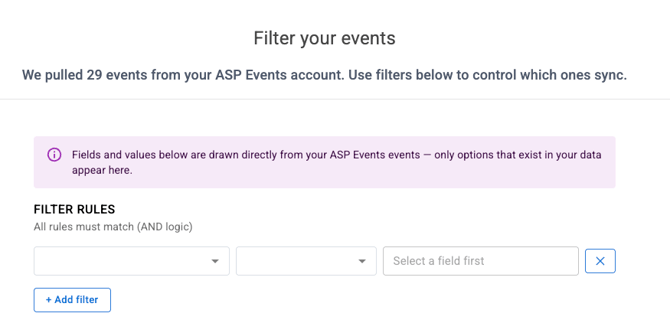
Exclude Events with "Does Not Contain"
Use Does Not Contain when you want to exclude events based on a particular value.
For example, your registration account may contain event templates or test events that shouldn't be created in InGo.
You could exclude event names containing:
- Test
- Template
- Do Not Use
Preview Your Events Before Syncing
As you configure your filters, InGo displays the events matching your criteria.
Review the results before completing your sync to make sure the events you expect are included.
If an event is missing, review your filters and adjust them before continuing.
Confirm and Sync
Once you're satisfied with the preview, confirm your filters and sync the matching events.
The events will appear in InGo as Potential Events.
Participant data does not begin syncing until a Potential Event is activated.
Sync All Events
You don't have to use filters.
If all eligible events available through the registration account belong in the InGo Community, you can bypass filtering and sync all events.
Update Your Filters Later
You can update your Event Filters at any time after connecting your API integration.
To access your filters, navigate to:
Growth Report → Execution → Add Events → Connect API → Credentials → Filters
From the Filters screen, you can add, remove, or modify your existing filters. Review the matching events to confirm the correct events are included, then save your changes.
Platform-Specific Filtering
Some registration platforms provide additional filtering options.
ASP
ASP integrations can use SiteUUID as a filter to limit the events retrieved from specific ASP sites. This can be particularly useful when API credentials provide access to several ASP sites.
Swoogo
Swoogo integrations can use folder information to help filter events when events are organized into separate folders.
What Happens After Events Sync?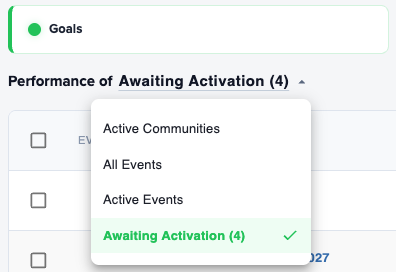
Events that match your filters are automatically created in InGo as Potential Events and appear in the Awaiting Activation section of your Growth Report.
A Potential Event is not yet active. When you're ready to use InGo for the event, activate it and complete the participant Group Mapping. Once activated and mapped, InGo begins syncing eligible participants from your registration platform into the appropriate InGo Groups.
Filtering FAQ
Why Am I Seeing Events That Belong to Another Team?
Your API credentials may provide access to a larger registration account containing events from several teams or portfolios. Return to your integration configuration and use Event Filters to define which events should belong in this InGo Community. Preview the matching events before confirming your updated filters.
Why Isn't My Event Appearing?
First, review your current filters to make sure the event hasn't been unintentionally excluded. Also confirm that the event contains the required information in your registration platform, including valid event dates. If you're still unable to locate the event, contact InGo Support.