
What is an Install?
An Install is the process of adding InGo’s event-marketing tools to an online event-registration journey.
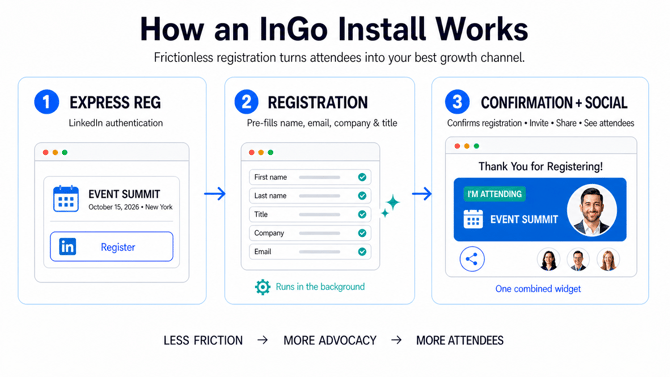
An installation uses widgets (small pieces of embedded JavaScript and HTML placed on registration pages) to support social advocacy, confirm completed registrations, and automatically complete supported form fields.
For most registration providers, a standard Registration Install can be completed in approximately 30 minutes once the necessary access, assets, and registration pages are ready.
Why complete a Registration Install?
InGo enables event organizers to grow their events by harnessing the power of their existing communities through referrals.
Registration is a high-intent moment. Attendees have just committed to participating and may be excited to announce that they are attending, speaking, sponsoring, or exhibiting at the event.
A Registration Install captures that momentum by giving new registrants an immediate opportunity to share the event and invite others.
Together, InGo’s widgets can:
- Turn registrants into advocates.
- Generate trusted peer-to-peer referrals.
- Reach qualified prospective attendees.
- Create sustainable organic growth.
- Reduce registration friction.
By building advocacy into the registration journey, every new registration can help generate the next one.
When should I complete a Registration Install?
Complete and test your Registration Install before registration opens.
This ensures that every new registrant has an opportunity to become an advocate from the beginning of the campaign.
The later the installation goes live, the fewer registrants InGo can activate. This can result in fewer advocates, fewer referral-driven acquisitions, and less potential event growth.
What is Part of a Complete Registration Install?
A complete Registration Install includes three primary widgets:
1. Confirmation and Social Surface
The Confirmation and Social Surface are placed prominently at the top of the confirmation or “Thank You” page. They should be immediately visible to the registrant with all additional information following.
This combined widget:
-
- Records that the attendee completed registration.
- Gives the attendee opportunities to invite others.
- Allows the attendee to share the event.
- Can show the attendee who else is attending.
The Social Surface should appear prominently on the page so attendees see it immediately after registering. If it is not visible at the top of the confirmation page the Install will fail to generate engagement and growth. The InGo platform will consider this a failed installation.
2. Express Reg (Login)
Express Reg appears at the beginning of registration and prompts attendees to authenticate using a supported social account, most commonly LinkedIn.
When an attendee authenticates, InGo can use their supported profile information to:
-
- Help complete the registration form.
- Create a personalized sharing experience.
- Display a personalized graphic when they reach the Social Surface.
Express Reg can be combined with either a Registrant Install or VIP Install.
3. Auto-Complete (Registration)
The Registration Widget runs in the background on the registration form and is not visible to the person registering.
When an attendee authenticates through a supported social account, the widget can pre-fill information such as:
-
- Name
- Email address
- Company
- Job title
This reduces the amount of information the attendee must enter manually.
Where are the widgets installed?
A complete Registration Install places the widgets at three points in the main attendee-registration journey.
|
Registration step |
InGo widget |
Purpose |
|
Beginning of registration |
Express Reg (Login) |
Allows attendees to authenticate using a supported social account. Using this widget ensures advocates land on a hyper personalized image at the end of the registration flow. |
|
Registration form |
Auto-Complete (Registration) |
Pre-fills supported attendee information in the background. Not visible to the registrant. |
|
Prominently on the Confirmation or “Thank You” page |
Confirmation and Social Surface |
Records the completed registration and allows attendees to announce their participation, share the event, and invite their networks. |
All relevant registration traffic should move through the complete installed journey. Links that skip an installed page may prevent parts of InGo from working as expected.
What do my registrants experience?
InGo’s widgets become a seamless part of your existing registration journey.
Registrants continue through the normal registration process, with the potential benefits of:
- Authenticating through a supported social account.
- Having supported personal information automatically added to the registration form.
- Receiving a personalized event graphic featuring their headshot, name, title, and company.
- Sharing their participation with their network immediately after registering.
- Inviting relevant connections to attend the event.
Think of it as an automated, personalized marketing kit created for each attendee at the moment their interest is highest.

What Types or Installs Does InGo Offer?
InGo offers three install options to support different participant groups, registration journeys, and registration providers.
These options allow an event to use InGo across multiple registration journeys—even when different participant groups register through different forms or providers.
Registrant Install
- The Confirmation Widget and Social Surface
- The Auto-Complete Widget
Use this install for the primary registration journey followed by general attendees (Attendee Group in InGo).
VIP Install
- The Confirmation Widget and Social Surface
- The Auto-Complete Widget
Use this install for separate registration journeys followed by speakers, sponsors, exhibitors, or other VIP groups (Speaker, Sponsor, Exhibitor Groups in InGo).
Express Reg
Express Reg uses the Login Widget at the beginning of registration. Express Reg is usually combined with a Registrant Install or VIP Install to create a more complete registration journey.
Ready to get started?
- Know before you go: Install Best Practices
- Get Installing
- Why Social Surface Placement Matters
- Specific Registration Provider Install Guides
If you still need help, InGo Support is always here to help. Reach us at support@ingo.me.