
This article covers the Event Summary path for locating, generating, and placing your InGo widget scripts so you can copy and paste them into your event platform. Whether you're new to InGo or refreshing your process, this guide will help you find the right code snippets and install them correctly.
Starting from the Growth Reports path instead? Use the install guide for what you're setting up: Registrant Install or VIP Install. Those guides cover the Growth Reports path along with prerequisites and more.
Getting Started
Before you can access your widget scripts, you'll need to navigate to your event in InGo Admin.
- Log in to your InGo Admin account.
- Navigate to your event from the Events Dashboard or use the search function on the Events page.
- Locate the InGo event you want to retrieve widget code for.
- Once you have navigated to your event, scroll down to the Groups section, which contains a list of different user and registration types.
From the Groups section, the way you access the Install Widgets page depends on whether the Group has already been activated.
If the Group has not been activated yet
A new or unused Group will show a blue Activate Group button next to the Group name.
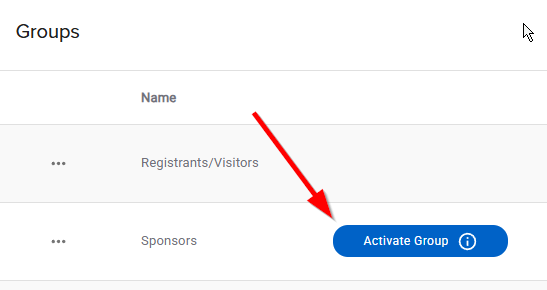
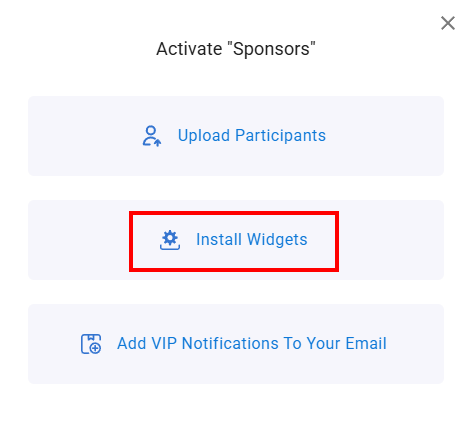
Click Activate Group to open the setup menu, then select Install Widgets.
If the Group has already been activated
Once a Group has been activated and users have started interacting with InGo, the Activate Group button is replaced by baseline metrics.
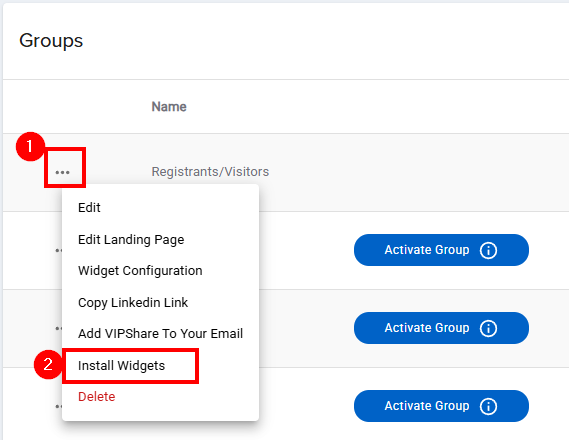
To access the widget scripts, click the ellipsis (...) button to the left of the Group name. This opens the Group menu, where you can select Install Widgets.
Choosing Your Registration Provider
Once you've reached the Install Widgets page, select the script that best fits your needs. InGo offers both standard scripts, which work in most cases, and platform-specific options tailored for specific registration platforms.
To generate your code snippets:
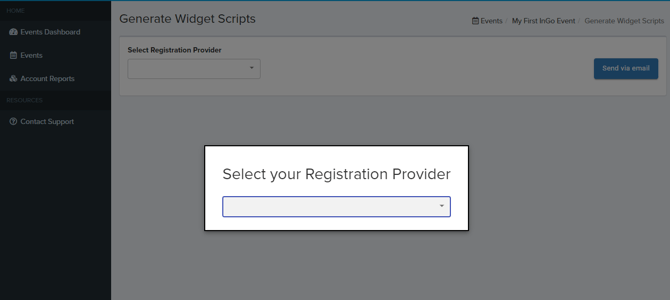
- Click the dropdown menu on the Select Your Registration Provider pop-up.
- Select your registration platform from the list.
- If your platform is not listed, choose one of the Standard Installation scripts as a starting point.
If your registration platform has specific requirements or does not allow for the addition of HTML and/or JavaScript, please contact our support team for assistance.
Installing Your Widget Scripts
Once your scripts are generated, installing InGo is a matter of copying and pasting each snippet into the correct page of your registration flow. Most InGo installations require widgets to be placed on three distinct pages:
|
Page |
Widget |
Notes |
|---|---|---|
|
First page of registration |
Login Widget |
Place above the fold so it is immediately visible to registrants. All registration traffic must flow through the Login Widget — this includes all "Register" links from your website and emails. |
|
Form page for data collection |
Registration Widget |
This widget has no visible UI. It works in the background to auto-populate your registration form fields when a registrant signs in socially via the Login Widget. |
|
Confirmation or "thank you" page |
Confirmation Widget + Social Surface |
Install both here. The Confirmation Widget must fire before the Social Surface. The Social Surface must appear at the top of the page, visible without scrolling. |
Important: Login Widget and Social Surface must be placed above the fold. All widget code must be placed in the page body, not the header or footer.
Related Articles
Introduction to InGo Registration Installs
Registrant Install RequirementsRegistrant Install, Starting from the Growth Report
VIP Install, Starting from the Growth Report
InGo Installation Best Practices for Maximum Performance
Why Social Surface Placement Matters
Uploading a Graphic
Platform Specific Installation Guides
Need Help?
If you have any other questions or need assistance with your scripts, reach out to us at support@ingo.me. Our team is happy to guide you through the process.