
The compliance footer adds your organization's legal and privacy details to every VIP Notification. It works with both HTML and Plain-text emails.
The footer includes:
- Organization Legal Name: the legal entity responsible for the event
- Organization Display Name: the organization name recipients recognize
- Organization Mailing Address: your physical mailing address
- Privacy Policy URL: a link to your privacy policy
You can set these details at two levels:
| Level | What it covers | Who updates it | How |
|---|---|---|---|
| Community | The default footer for every event in your community | InGo Support | Submit the Customize Sender Information form |
| Event | One event only, overrides your community details | You | Event Summary > Configure > Edit Event Details |
Good to know: The footer only appears in your VIP Notifications once InGo has turned on the compliance footer for your community. To get started, submit the Customize Sender Information form.
Update the Footer for Your Whole Community
InGo Support sets up and updates your community footer. Use this option to add the footer for the first time or to change the default details for all your events.
- Open the Customize Sender Information form.
- Enter your name and email, then choose VIP Notification Footer Update.
- Enter your InGo community name and your Organization Legal Name, Organization Display Name, Organization Mailing Address and Privacy Policy URL. All four details are required to set up the footer.
- Submit the form. You'll receive an email confirming we got your request.
- InGo Support updates your community and lets you know once the footer is live. If any details are missing, we'll ask you for them before turning the footer on.
Your community details apply automatically to all events in your community. Most requests are completed within 1 business day.
PRO TIP: You can also request a custom sending domain on the same form, so your VIP Notifications come from your own email address. See Updating Sending Details and Your Sender Domain.
Update the Footer for a Single Event
You can give one event different footer details, for example for a co-hosted event, a different legal entity, or a different address or privacy policy. These details apply only to that event.
- In InGo, open the event's Event Summary page.
- Click Configure. The Edit Event Details page opens.
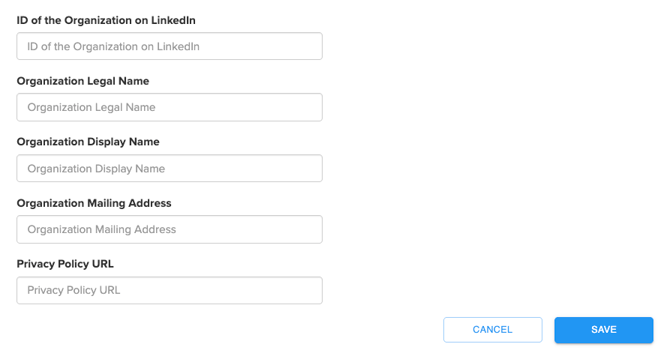
- Scroll to the footer fields and fill in the ones you want to change:
- Organization Legal Name
- Organization Display Name
- Organization Mailing Address
- Privacy Policy URL
- Click Save.
Any field you leave blank uses your community details.
How Community and Event Details Work Together
Event details always take priority over community details for that event.
| If you have... | The footer shows |
|---|---|
| Community details only | Community details on every event |
| Community and event details | Event details on that event, community details on all other events |
| Event details with some fields blank | Event details where filled in, community details for the blank fields |
Updating your community details won't change events that already have their own footer details.
Frequently Asked Questions
Is the compliance footer turned on by default?
No. Submit the Customize Sender Information form and InGo Support will set it up for your community.
I filled in the footer fields for my event, but the footer isn't showing. Why?
The compliance footer must first be turned on for your community by InGo. Submit the Customize Sender Information form, and your event details will appear once it's on.
Which emails include the footer?
All VIP Notifications, in both HTML and Plain-text. The footer doesn't appear on password resets, user invites or other system emails.
Can I remove the unsubscribe link?
No. Every VIP Notification includes an unsubscribe link. Recipients can unsubscribe from that event or from all events in your community.
I have several communities. Do I need to submit a request for each one?
Yes, the footer is set per community. If you have many communities to update, contact InGo Support and we'll help.