
1. Scheduling
My schedule won't save: "These required dates aren't scheduled for the majority of your participants"
You may see this message at the bottom of the Schedule window, with the Save button greyed out:
These required dates aren't scheduled for the majority of your participants: 12/03/2026. Add them to All Groups, or to groups that make up more than 50% of participants.
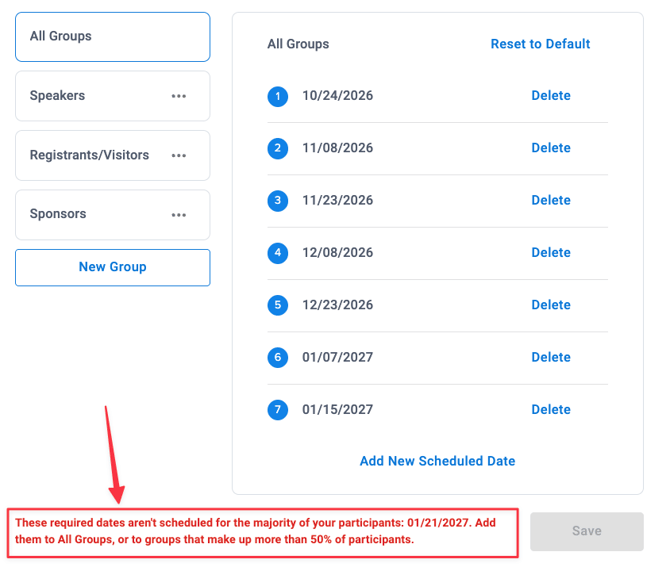
Why: Your organization has marked some send days as required in Growth Reports, for example 30, 15, 7, and 1 day before the event. Each required date has to reach most of your participants. The message lists the required dates that are missing or only scheduled for small groups.
Fix:
- Add each date listed in the message, either under All Groups, or to groups that together make up more than 50% of your participants.
- Click Save.
Dates that aren't required can be added, moved, or deleted freely, and you can always send more than the required dates. To change which days are required, ask your organization's Decision Maker or your InGo Account Manager (see Managing VIP Notification Requirements from Growth Reports).
Emails went out that I didn't schedule
New events get a default schedule. See Understanding Your VIP Notification Schedule.
I want some emails to go to every group
In Manage Emails > Schedule, select All Groups on the left, add the dates, and click Save. Dates under All Groups send to every group whose toggle is on.
2. Sending
Send Now is greyed out for a group
The group's VIPShare Emails toggle is off, or the group doesn't have a post graphic yet. Fix whichever applies.
I think my emails didn't go out
See How to Check if Your VIP Notifications Were Sent.
Can I recall or cancel an email that was already sent?
No. Sent emails can't be recalled. To prevent future sends, update the schedule or turn off the group's toggle.
3. Recipients
People who haven't registered are receiving emails
This usually comes from API group mapping. For example, in Cvent, "No Registration Type" can be mapped to an attendee group, which pulls in invitees.
- Review your integration's group mapping and set any non-registered types to not mapped.
- Contact InGo Support to remove people who were already synced.
Someone received duplicate emails
- Different email addresses: InGo identifies participants by email, so "name+test@company.com" and "name@company.com" are two participants. Remove test registrations before sends go out.
- Two events: a person registered for two events with the same schedule receives an email for each event.
I need to stop emails to specific people
Move them to a suppression group. See How to Remove Participants.
Someone unsubscribed by mistake
Contact InGo Support. Participants can't be re-subscribed from Admin.
4. Test Emails
My test email didn't arrive
- Check spam, junk, and promotions folders for the sender (info@ingo.me or your custom address) and the subject line.
- If you've unsubscribed from InGo emails in the past, tests to that address won't arrive. Try another address.
- Wait a few minutes between repeated tests to the same address.
- Your company's email security may hold external emails. Ask your IT team to check quarantine.
- Sending from your own domain can help emails reach inboxes. Request it with the Customize Sender Information form.
My name, photo, or company logo isn't in the test email
This is expected. Test emails always show placeholders, such as "Your Name", "Your Company", and "Your Photo", instead of real details. Real participants see their own name, photo, and company.
5. How the Email Looks
Button text is cut off
Long button text can be cut off in some inboxes, for example "Share with my net...". Keep Button Text short, such as "Get Started" or "Share Now". An update by InGo team that addresses this is in progress.
A participant's information or photo is wrong
- Re-upload the participant with the corrected details (see How to Upload Participants).
- If your event syncs from a registration platform, update name, title, and company there.
6. Replies and Compliance
Where do replies go?
Replies go to the sending address: info@ingo.me by default, or your custom address if you have one. If participants need to reach your team, include a contact email in the Body of the email.
I need to add our legal and privacy details.
Add them with a compliance footer. See Updating the Footer on Your VIP Notifications.
Still stuck? Contact support@ingo.me with your event name, the group, and a screenshot.