
Overview and Guide
This article explains how to set up a group within an InGo event. Groups define how participants interact with sharing experiences by controlling key configuration options such as available social networks, authentication behavior, and general social post settings.
Properly configuring a group ensures your desired audience sees the correct sharing options and has a consistent posting experience throughout your campaign.
Accessing Your Group Settings
Group settings are accessed from the Event Summary page within an InGo event. Scroll down to the Groups section, where you’ll see a list of all groups created for the event.
New Groups can be created via the blue "New Group" button in the right corner of the Group Section.
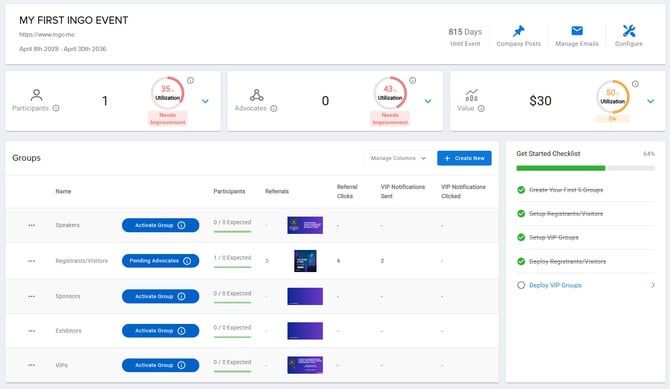
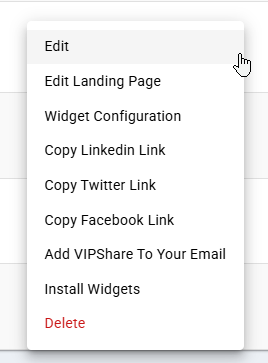
Each group row includes an ellipsis (⋯) icon next to the group name. Selecting this icon opens a context menu with group-specific actions. Choose Edit to open the Edit Group page, where all group configuration options are managed.
General Tab Settings
When you open the Edit Group page, you’ll land on the General tab by default. This tab contains the core settings that define the group’s identity and how it behaves within the event.
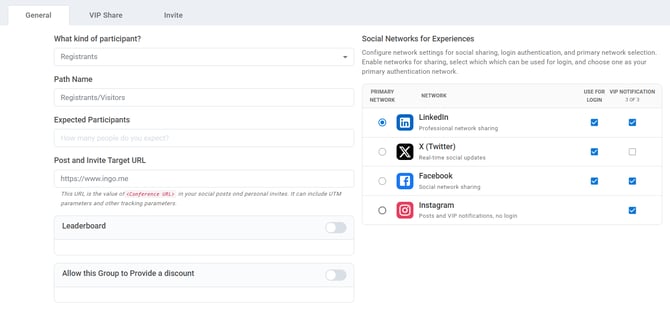
The following fields define how the group is identified, tracked, and linked to your event.
-
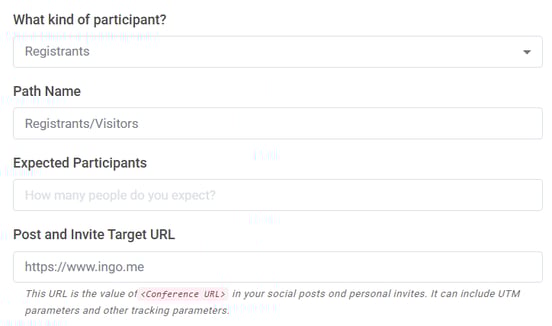
What kind of participant?
Defines the participant classification for the group. This selection determines how users in this group are tracked and reported on within the system. -
Path Name
An internal name used to identify the group within InGo. This value is not visible to participants, but helps distinguish this group from others when managing your event. -
Expected Participants
The estimated number of participants for this group. This value is used for reporting purposes to compare real-time participation against your projections. -
Post and Invite Target URL
The destination URL included in social posts for this group. This value replaces the<Conference URL>merge field and defaults to the event’s main URL. You can customize it per group to route users to specific registration experiences. Using unique UTM parameters per group is recommended for improved tracking.
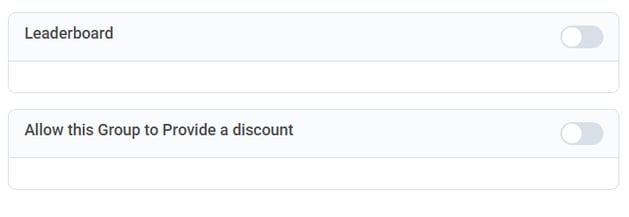
Next, these two optional settings add additional functionality to the group when enabled.
-
Leaderboard
When enabled, adds a gamified leaderboard to the social widget that highlights top contributors based on posting activity, helping encourage participation through visibility and competition. For more information, please see our support article on setting this up. -
Allow this Group to Provide a Discount
An optional add-on feature that allows advocates in this group to share discounts with their network when someone clicks their post and registers for the event.
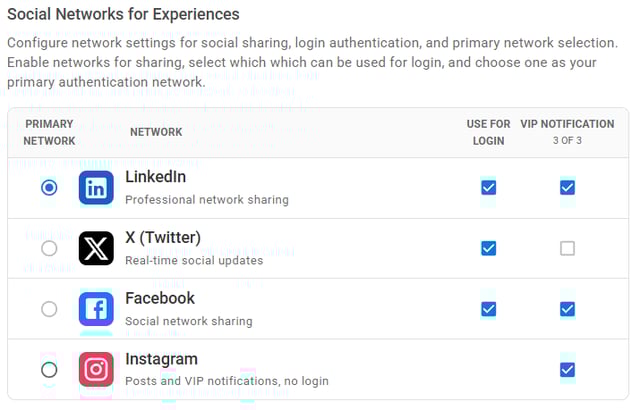
Finally, the Social Networks for Experiences setting below controls which social networks are available for authentication and posting within the group. For more information on how to configure this section, please check out this support article.
VIP Share Tab Settings
The VIP Share tab contains settings that control how participants generate and share content through the widget. These configurations determine the available post formats, personalization behavior, and how sharing experiences are presented to users.
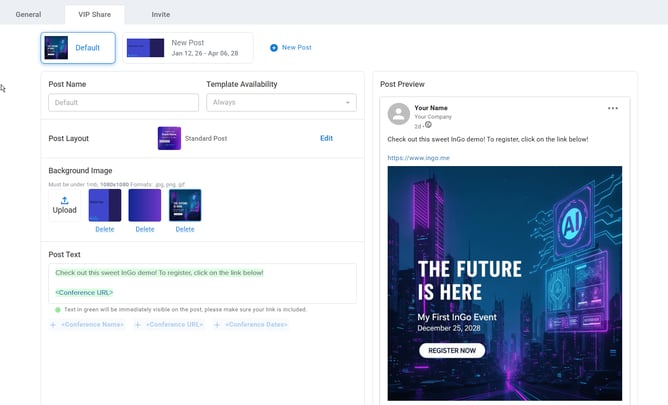
At the top of the page, you’ll see a list of post options configured for the group. Each post option represents a distinct sharing experience that participants can choose from. A maximum of four post options can be configured per group.
Post Option Configuration
Each post option includes the following settings:

-
Post Name
An internal name used to help identify and manage post options. This name is not visible to participants. -
Template Availability
Controls when the post option is available to participants. Options include before, during, or after the event, or a custom date range.
The first post option is always available, is labeled Default, and cannot be renamed or removed.
-
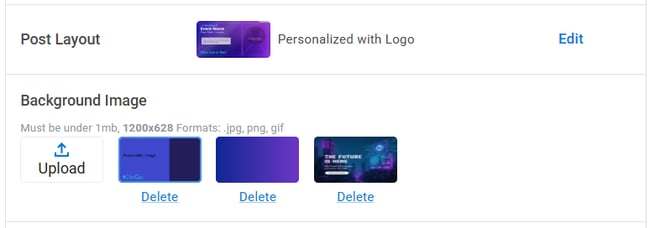
Post Layout
Determines the format and structure of the shareable content, such as standard, personalized, or video layouts. This article goes into more depth on what each option can offer. -
Background Image
The visual asset used as the background for the post.
-
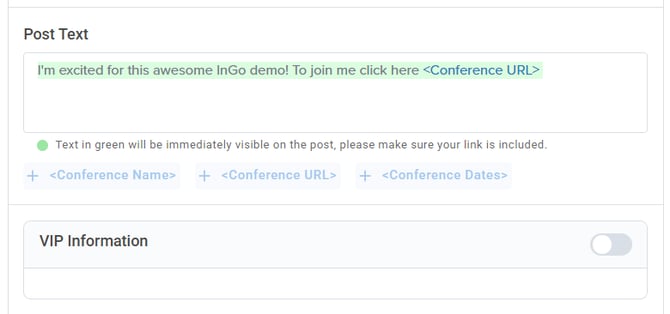
Post Text
The text that appears alongside the shared graphic when advocates post to their social networks. -
VIP Information
An optional add-on feature that allows a custom field—such as a promo code or user-specific value—to be overlaid in the bottom-left of the graphic.
-
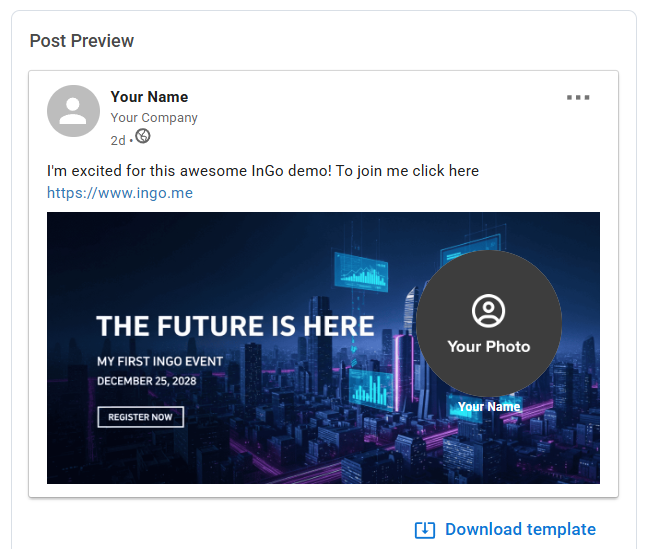
Post Preview
Displays a real-time preview of how the post may appear on a social platform based on the current configuration. A template is also available for download to help design graphics around where InGo overlay fields will appear.
Personalized Layout Options
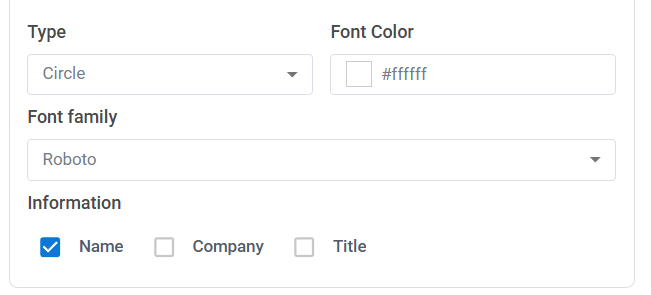
When a personalized Post Layout is selected, additional customization options become available for user-specific overlay data:
-
Type
Controls the shape of the profile image or avatar (square or circular). -
Font Color
Sets the color of overlaid text. -
Font Family
Determines the font used for personalized text. -
Information
Allows you to toggle which data is displayed, including the participant’s name, company, and job title.
Invite Tab Settings
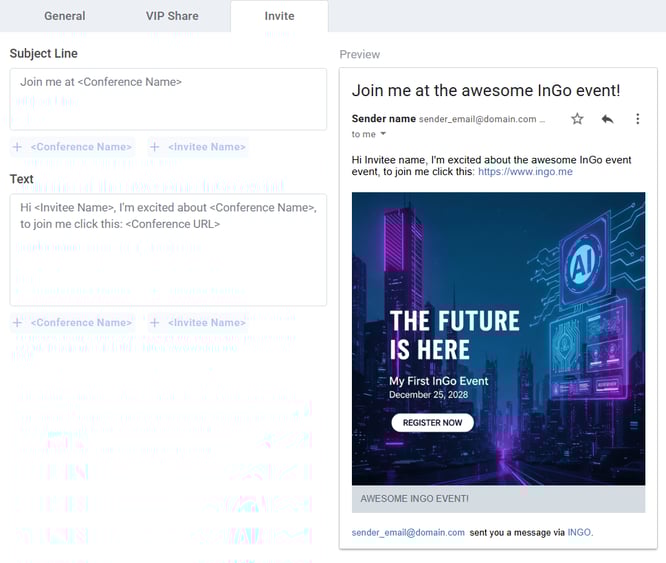
The Invite tab allows you to configure an email-based sharing option for the group. This provides participants with an alternative (or complement) to social posting by letting them send event invitations directly to friends or colleagues via email.
Within this tab, you can configure the email subject and message body that participants will use when sending invites. A preview of the associated graphic is displayed within the email body so recipients can see the visual content alongside the message.
Frequently Asked Questions
- What is a group used for in an InGo event?
A group defines how participants interact with sharing experiences within an event. It controls available social networks, post options, personalization behavior, and invite functionality.
- Can I create multiple groups for a single event?
Yes. You can create multiple groups within an event, each with its own configuration. This allows you to tailor experiences for different participant types or registration paths.
- How many post options can a group have?
Each group can have up to four post options. One default post option is always included and cannot be removed or renamed.
- What’s the difference between VIPShare and Invite?
VIPShare focuses on social sharing through the widget, while Invite allows participants to send event invitations directly via email using a configurable message and graphic.
- Can participants use both social posting and email invites?
Yes. Depending on your configuration, participants may be able to share via social networks, email invites, or both.
- Do changes to group settings take effect immediately?
Yes. Updates to group settings apply immediately and will affect what participants see the next time they interact with the widget or invite experience.
Wrapping Up
Groups are the foundation for configuring how participants share and invite others within an InGo event. By setting up the General, VIPShare, and Invite tabs, you define how users post on social networks, personalize content, and send event invitations.
Once your group is configured, review each tab to ensure settings align with your event goals. If you have questions or run into issues, contact support at support@ingo.me for assistance.