
Overview and Guide
This article explains how to navigate to and configure which social networks are enabled for an InGo event group. Enabled networks can appear in multiple areas of your campaign, including widgets embedded in your registration flow and as direct posting options within VIP Notification emails.
The social networks you select can affect both authentication and posting behavior, and may change the experience participants see when sharing content about your event. Configuring these options correctly helps ensure users have access to the platforms that best support your campaign goals.
Accessing Social Network Settings
To begin configuring social network options, navigate to the Edit Group screen. By default, you’ll land on the General tab. On the right-hand side of the page, locate the Social Networks for Experiences section, which displays a table of available social platforms and how they’re used throughout your campaign.
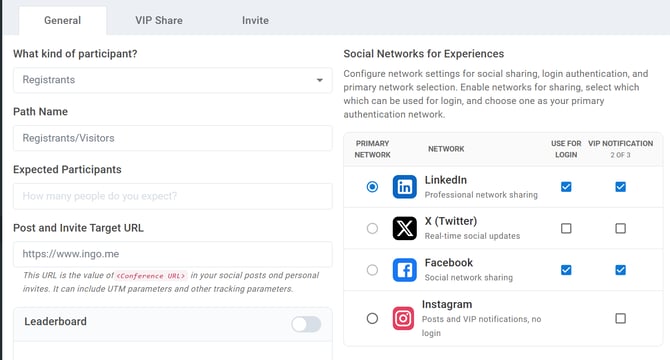
Each row in the table represents a social network, with the following configuration options:
-
Primary Network - Determines which social platform is prioritized for users during sharing experiences.
-
Network - Displays the available social platforms that can be enabled or disabled.
-
Use for Login - Controls which social networks appear as authentication options for personalization.
Note: The Use for Login column functions similarly to the historical options on this screen for selecting your social networks. Any options left unchecked will not appear in any widgets or VIP Notifications.
-
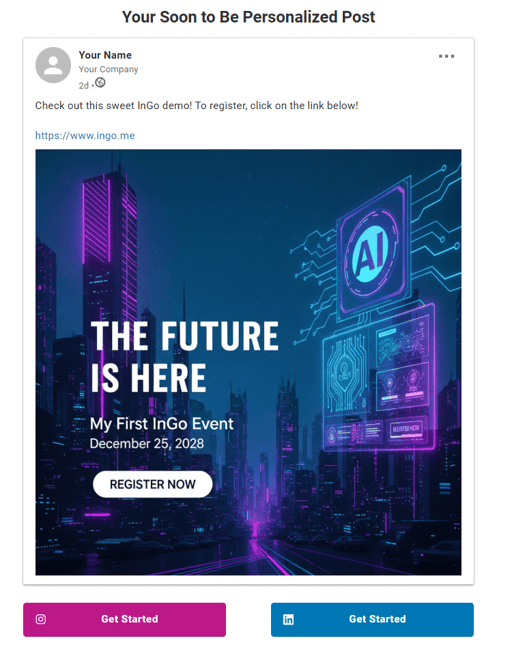
VIP Notification - Determines which social networks appear as posting options within a VIP Notification email. You can select up to three networks for this purpose.
Instagram-Specific Behavior
Instagram behaves differently from other social networks due to platform limitations around authentication and posting.
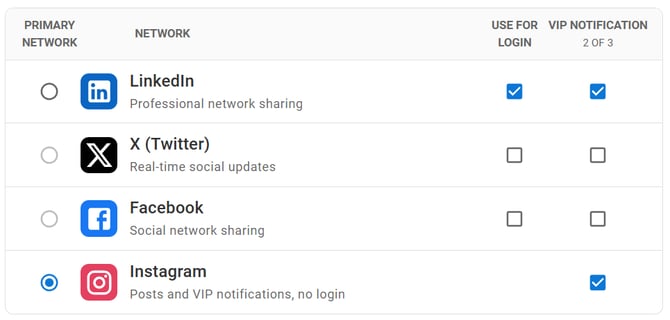
Authentication Limitations
At this time, users are unable to authenticate with Instagram to pull in personalized profile data, such as their name or profile image.
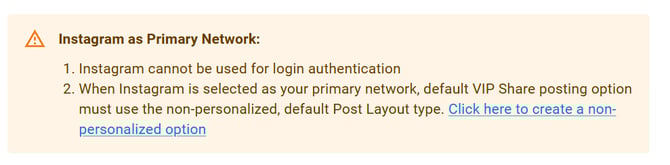
What Happens When Instagram is Set as the Primary Network
When Instagram is selected as the Primary Network, the following requirements and behaviors apply:
-
The first available posting option must be non-personalized and set to the Standard option, as personalized layouts are not supported for Instagram-first experiences. Click here for more information on configuring your Post Layout options.
-
The widget experience for participants will vary based on where they are accessing the widget from.
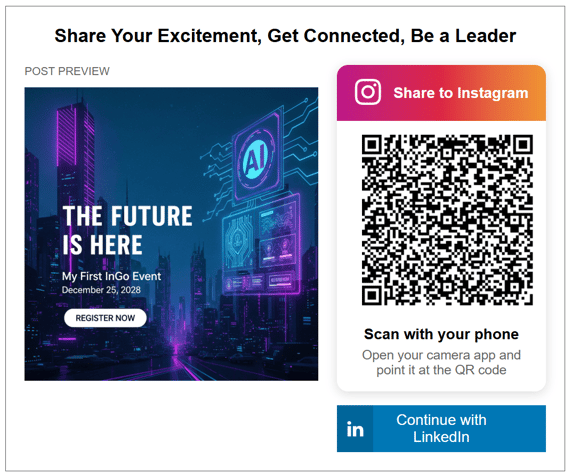
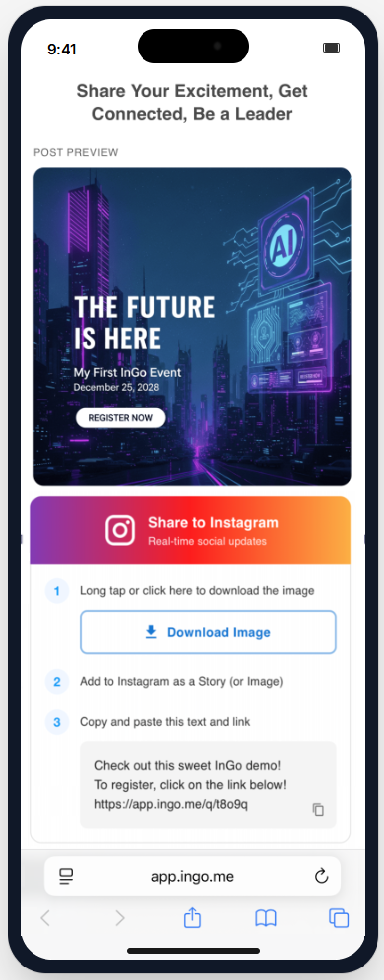
On mobile: Users are shown a different version of the Instagram-focused social widget. There will be instructions for saving/downloading the first posting graphic, along with the ability to copy pre-filled posting text to share to their Instagram Story or Profile.
Users may still choose to authenticate with another supported social network to access personalized layout options, then return to Instagram later to complete their post.
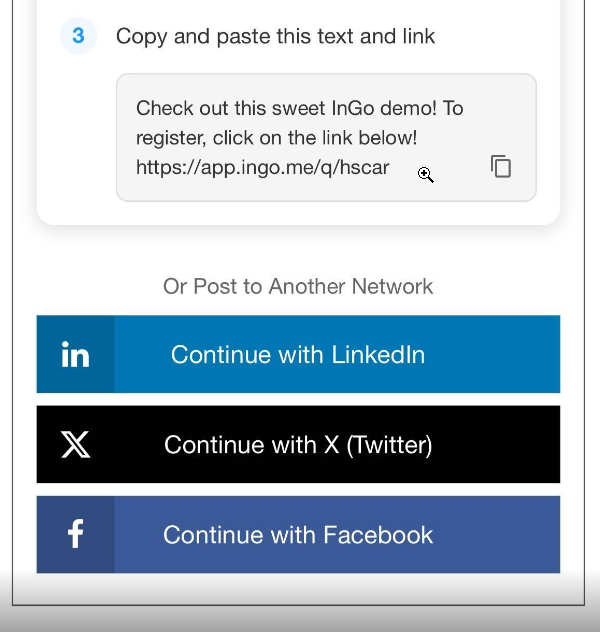
Note: When the QR code is scanned from desktop, users are taken to a standalone mobile page (not a widget) that displays the same options and instructions. At this stage, they can complete the Instagram posting flow but cannot switch to another social network.
Seeing your Social Network Selections in Action
Now that you've set your social preferences, it's time to review where to see where these show up.
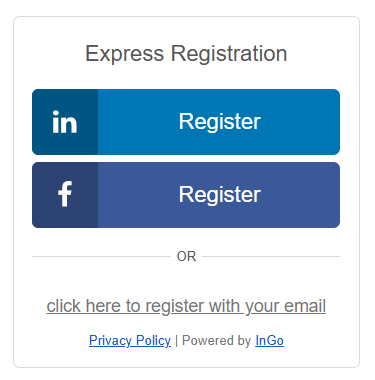
Login Widget
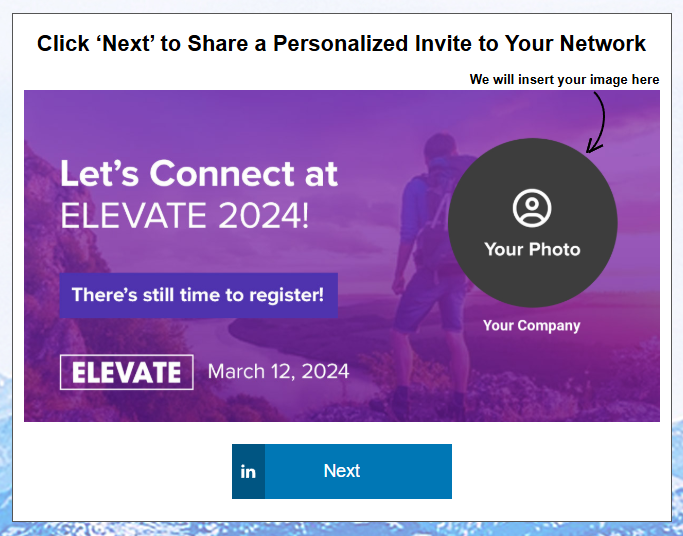
The networks appear as authentication options to kick off the event registration process.
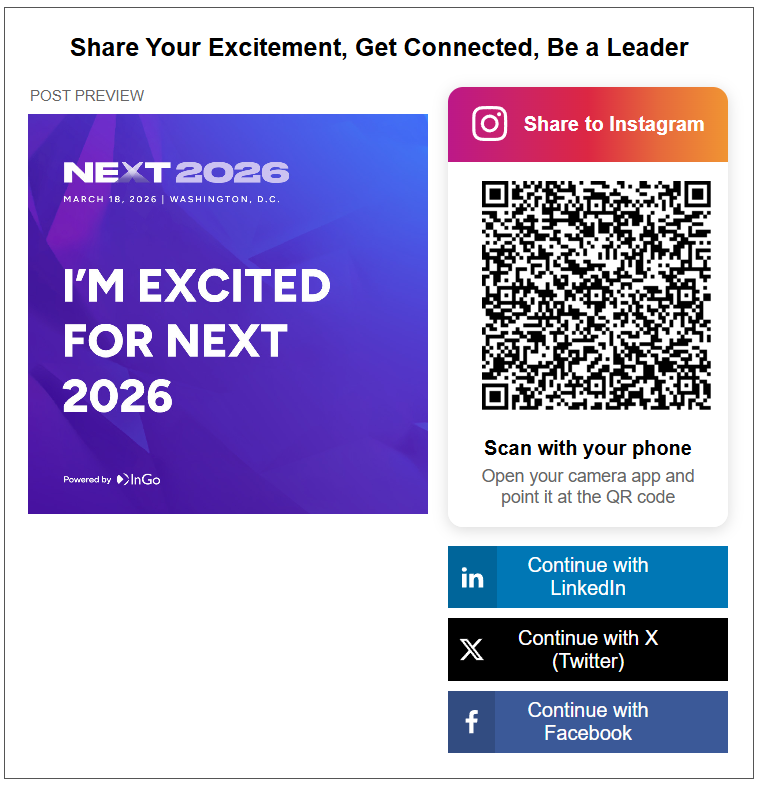
Social Widget
Depending on if Instagram is selected as the primary network, the social options will display one of two ways.
VIP Notification
All options enabled for VIP Notifications will appear at the bottom of the email as CTA (call to action) buttons, right below the post preview.
Frequently Asked Questions
-
Why can’t Instagram be used for login or personalization?
Instagram does not currently support authentication in a way that allows profile data to be pulled into a personalized graphic. Because of this limitation, Instagram cannot be selected as a login option and does not support personalized Post Layouts. -
Why is a Standard (non-personalized) Post Layout required when Instagram is the Primary Network?
Instagram-first experiences require at least one non-personalized option so users can generate a shareable image without authenticating. This ensures all participants can complete the posting flow regardless of login status. -
Can users still create personalized graphics if Instagram is enabled?
Yes. Users can authenticate with another supported social network to access personalized layouts, then return to Instagram later to complete their post using their newly personalized option or the standard non-personalized one. -
Why do desktop users see a QR code instead of a posting button?
Most Instagram posting happens on mobile devices. The QR code allows desktop users to quickly transition to a mobile-friendly experience where they can save the image and share it directly from the Instagram app. -
What happens after a user scans the QR code?
Scanning the QR code opens a standalone mobile page with instructions for saving the image and copying the pre-filled post text. This page is not part of the widget, so users cannot switch to another social network from that point. -
Why do I see a warning message after selecting Instagram as the Primary Network?
The warning is a reminder that Instagram cannot be used for login authentication and that a non-personalized Post Layout is required. It’s designed to help prevent misconfiguration before users interact with the widget.
Wrapping Up
Configuring social networks—especially Instagram—directly affects how participants authenticate and share content through your campaign. Understanding Instagram’s unique behavior helps ensure the posting flow works smoothly across desktop and mobile experiences.
After configuring your social network settings, review your Post Layout options to confirm that a non-personalized layout is available when Instagram is enabled. If users aren’t seeing expected options or encounter issues during posting, contact support at support@ingo.me to verify your configuration and feature access.