
Occasionally, you may need to move a participant between groups if they were uploaded to the wrong group, changed roles (for example, from Registrant to Speaker), or similar.
A participant can belong to only one group at a time. There are two ways to move them:
| Method | Best for | Locks the group? |
|---|---|---|
| Change Group on the Participants report | A smaller number of participants, and any participant synced from your registration platform | Yes |
| Upload into the new group | Moving a large list at once | No |
IMPORTANT: Moving a participant with Change Group functionality locks their group. Future API syncs and uploads won't move them again. See below Option A before moving participants who sync from your registration platform.
Option A: Move Participants with Change Group
- On the Event Summary page, click Configure and select Registrants / Participants
- Find the participant(s) you want to move. Use Filter by to search by name, company, or title, or select a group on the left to narrow the list
- Check the box next to each participant you want to move. The number selected appears above the table
- Click Change Group
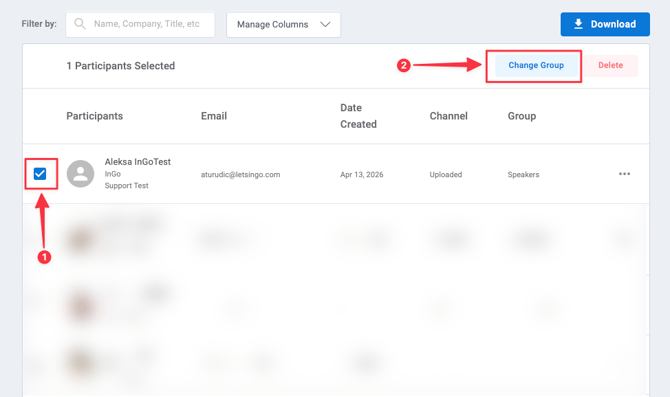
- In the Move Members to dropdown, select the new group
- Click Move Members
The Group column now shows the new group for each participant you moved. Their group is now locked.
Option B: Move a Large List with an Upload
InGo identifies every participant by email, so uploading existing participants into a different group moves them there without creating duplicates.
- Prepare a .csv or .xlsx file with the First Name, Last Name, and Email of each participant you want to move. The emails must match the ones already in InGo
- Upload the file into the new group, following How to Upload Participants
- Open the new group on the Participants page and check that everyone from your file is there
NOTE 1: An upload won't move participants whose group is locked. If anyone from your file is missing from the new group, move them with Change Group.
NOTE 2: A move by upload isn't locked. If your event syncs from a registration platform, the next sync can move those participants back based on your group mapping. For synced participants, use Change Group instead.
How Group Lock Works
When you move a participant with Change Group, InGo locks their group so your manual change isn't undone later. This applies no matter how the participant was added: API sync, upload, or registration.
| The lock does | The lock doesn't |
|---|---|
| Stop future API syncs from moving the participant to another group | Protect participant details (name, email, job title, company, headshot). Uploads and syncs can still update these |
| Stop future uploads from moving the participant to another group | Apply to moves made by upload. Only Change Group creates a lock |
| Still let you move the participant again with Change Group | Show anywhere in the dashboard. There's currently no lock indicator |
Why this matters for API-synced events
If your event syncs from your registration platform, InGo places participants in groups based on your group mapping (for example, by Registration Type or Ticket Type). Once you move a synced participant with Change Group:
- Their group stays as you set it, even if the registration platform lists them differently
- If their registration type later changes in the platform, InGo won't move them to match
PRO TIP: Before moving synced participants with Change Group, make sure the change is meant to stick. If a participant's role is likely to change in your registration platform, it may be better to fix it there and let the sync update their group.
Removing a lock
There's currently no unlock option in the dashboard. If you need a locked participant to follow your API sync or uploads again, contact InGo Support with:
- The event name and summary URL
- The email addresses of the participants to unlock
Unlocking is handled by our team and can take a few business days.
Frequently Asked Questions
How do I know if a participant's group is locked?
There's no lock indicator in the dashboard yet. A participant is locked if their group was changed with Change Group at any point. If you're not sure, contact InGo Support.
I uploaded a participant into a new group, but they didn't move. Why?
Their group was most likely changed with Change Group earlier, so it's locked. Move them with Change Group instead.
My API sync moved a participant back to their original group. How do I stop this?
Move them with Change Group. This locks their group, so future syncs won't move them.
I changed someone's registration type in my registration platform, but their InGo group didn't update. Why?
Their group was locked by an earlier Change Group move. Either move them with Change Group or ask InGo Support to remove the lock so the sync can update them.
Does the lock stop their name or job title from updating?
No. The lock only covers group placement. Details like name, job title, company, and headshot still update from syncs and uploads.
Can I move a participant into more than one group?
No. A participant can only belong to one group at a time.
Will moving a participant stop outreach from their old group?
Yes. They'll receive the VIP Notifications and VIPShare set up for their new group. To stop outreach altogether, see How to Remove Participants.
Questions or need help? Contact support@ingo.me or submit a request through Contact Us.