
This article describes the general process for installing InGo into your Visit registration flow.
Getting Started
Widget Scripts
While on your InGo event, navigate to the Install Widgets page and from the Registration Provider dropdown menu select Visit. You will see three sets of scripts that will be used to install InGo. For now, open a new tab in your browser and open your Visit registration and we'll come back to this page later.
Where & How to Install InGo Widgets
Installing in three distinct steps (details in the table below) through the registration workflow.
|
Registration Page |
Widget Type |
|
Welcome (Start) page |
Login Widget |
|
Personal Details (Form) page |
Registration Widget |
|
Complete ("Confirmation"/"Thank you") page |
Confirmation Widget & Social Widget |
In Visit form settings for your event, for each of the listed pages, choose the "Current page settings" (1), and then utilize the "Edit JavaScript" option (2) to add a relevant InGo Widget script.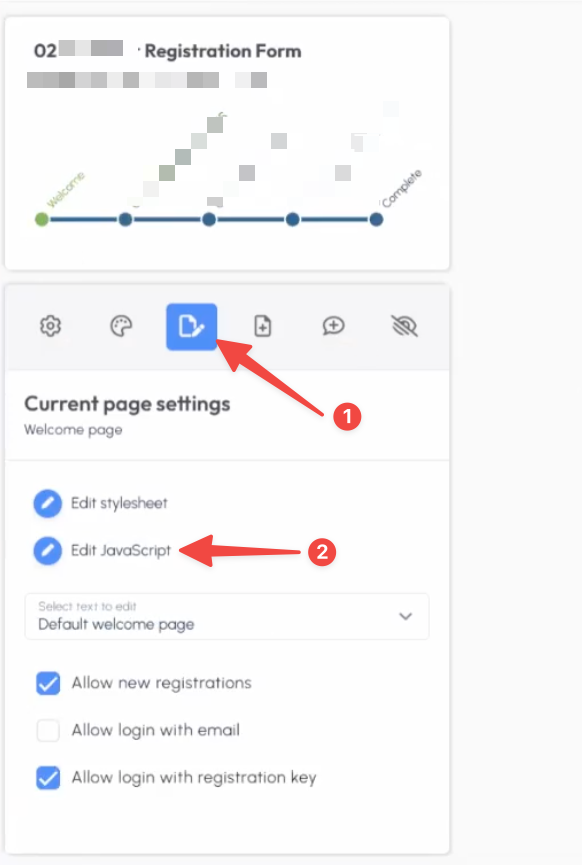
Please do not place InGo code in the header or footer of the page. This will prevent the widgets from loading correctly and may cause issues with data tracking.
Login Widget
NOTE: Due to current technical restrictions, InGo's Login Widget will not display on mobile Android devices. Accessing registration from desktop or Apple devices will allow this widget to appear normally.
While on your landing page for registration, usually called "Welcome" page, prior to hitting any forms, the Login widget should be placed here. An example of what this code will look like can be found below:
function runActivator(){
ingoWidgetRun("INSERT_LOGIN_WIDGET_ID", "activator", "#activator");
};
loaderOnPage = jQuery("script[src='https://cdn.ingo.me/widgets-loader/latest/js/ingo.loader.widget.js']").length;
if (loaderOnPage >=1) {
jQuery(document).ready(function(){
runWidgetOnPage = jQuery("script[src$='visit4WidgetRun-v3.js']").length;
if (runWidgetOnPage >=1) {
runActivator();
} else {
var loadTheFile = document.createElement("script");
loadTheFile.setAttribute("src", "https://cdn-ingo.s3.amazonaws.com/custom-js/visit4WidgetRun-v3.js");
loadTheFile.onload = function(){
runActivator();
};
head.append(loadTheFile);
}
});
} else {
var head = document.getElementsByTagName("head")[0];
var ingoLoader = document.createElement("script");
ingoLoader.setAttribute("src", "https://cdn.ingo.me/widgets-loader/latest/js/ingo.loader.widget.js");
ingoLoader.onload = function(){
var loadTheFile = document.createElement("script");
loadTheFile.setAttribute("src", "https://cdn-ingo.s3.amazonaws.com/custom-js/visit4WidgetRun-v3.js");
loadTheFile.onload = function(){
runActivator();
};
head.append(loadTheFile);
};
head.append(ingoLoader);
};
In the text box below the platform 'Register' button, click into the code editor view (</> icon), and paste the following code below:
<div id="activator"><br></div>
Registration Widget
Navigate to the Personal Details form page to install the Registration widget. An example of what this code will look like can be found below:
function runAutofiller(){
ingoWidgetRun("INSERT_REGISTRATION_WIDGET_ID", "autofiller");
};
loaderOnPage = jQuery("script[src='https://cdn.ingo.me/widgets-loader/latest/js/ingo.loader.widget.js']").length;
if (loaderOnPage >=1) {
jQuery(document).ready(function(){
runWidgetOnPage = jQuery("script[src$='visit4WidgetRun-v3.js']").length;
if (runWidgetOnPage >=1) {
runAutofiller();
} else {
var loadTheFile = document.createElement("script");
loadTheFile.setAttribute("src", "https://cdn-ingo.s3.amazonaws.com/custom-js/visit4WidgetRun-v3.js");
loadTheFile.onload = function(){
runAutofiller();
};
head.append(loadTheFile);
}
});
} else {
var head = document.getElementsByTagName("head")[0];
var ingoLoader = document.createElement("script");
ingoLoader.setAttribute("src", "https://cdn.ingo.me/widgets-loader/latest/js/ingo.loader.widget.js");
ingoLoader.onload = function(){
var loadTheFile = document.createElement("script");
loadTheFile.setAttribute("src", "https://cdn-ingo.s3.amazonaws.com/custom-js/visit4WidgetRun-v3.js");
loadTheFile.onload = function(){
runAutofiller();
};
head.append(loadTheFile);
};
head.append(ingoLoader);
};
Confirmation and Social Widgets
Navigate to the registration confirmation page to install the Confirmation and Social widgets. An example of what this code will look like can be found below:
function checkContainer () {
if($('#amplifier').is(':visible')){ //if the container is visible on the page
ingoWidgetRun("INSERT_SOCIAL_WIDGET_ID", "amplifier", "#amplifier");
ingoWidgetRun("INSERT_CONFIRMATION_WIDGET_ID", "authorizer");
} else {
setTimeout(checkContainer(), 50); //wait 50 ms, then try again
}
}
loaderOnPage = jQuery("script[src='https://cdn.ingo.me/widgets-loader/latest/js/ingo.loader.widget.js']").length;
if (loaderOnPage >=1) {
jQuery(document).ready(function(){
runWidgetOnPage = jQuery("script[src$='visit4WidgetRun-v3.js']").length;
if (runWidgetOnPage >=1) {
checkContainer();
} else {
var loadTheFile = document.createElement("script");
loadTheFile.setAttribute("src", "https://cdn-ingo.s3.amazonaws.com/custom-js/visit4WidgetRun-v3.js");
loadTheFile.onload = function(){
checkContainer();
};
head.append(loadTheFile);
}
});
} else {
var head = document.getElementsByTagName("head")[0];
var ingoLoader = document.createElement("script");
ingoLoader.setAttribute("src", "https://cdn.ingo.me/widgets-loader/latest/js/ingo.loader.widget.js");
ingoLoader.onload = function(){
var loadTheFile = document.createElement("script");
loadTheFile.setAttribute("src", "https://cdn-ingo.s3.amazonaws.com/custom-js/visit4WidgetRun-v3.js");
loadTheFile.onload = function(){
checkContainer();
};
head.append(loadTheFile);
};
head.append(ingoLoader);
};
Open the code editor view (</> icon) and locate the position on the page you would like to add the Social Widget. Paste the following code into the editor:
<div id="amplifier"><br></div>
Testing Your InGo Installation
For widgets with a visual UI, such as the Login and Social widgets, view the preview versions of each of these pages. If you see your InGo widgets appear then you've installed these correctly.
For your Registration Widget, this can be tested by confirming if autofill is occurring successfully. When authenticating with the Login widget, choosing a social option will pull data from your account and populate the form accordingly.
And that's it! For any questions or assistance with this integration, please reach out to support@ingo.me.