
An InGo Advocate is any participant who takes action through InGo to help promote your event.
A participant becomes an Advocate when they do at least one of the following:
- Uses the InGo Social Surface to share, invite, or help build visibility for your event on a supported social media platform, such as LinkedIn, Facebook, Instagram, or X
- Sends a personal invitation to their network using Smart Personal Invites
- Engages with a VIP Notification or VIPShare in your email to post about your event
- Shares their personal InGo event link outside of InGo (for example, with Copy Link on the Social Surface), and at least one person clicks it. These are Direct Share Advocates.
Advocates can come from any participant group, including attendees, speakers, sponsors, exhibitors, or VIPs. Depending on your setup, each group may be activated through separate InGo campaigns or participant groups.
Direct Share Advocates
Every participant who connects through an InGo widget gets a personal event link that tracks the clicks it brings in. Some participants copy that link (or the suggested post text, which includes it) and share it themselves, for example in a message, an email, or a post they write outside of InGo.
When that link gets at least one click, the participant counts as an Advocate, even if they never posted or invited through InGo. We call them Direct Share Advocates.
In the Advocates Report, Direct Share Advocates:
- Show Yes in the Direct Share column (other Advocates show No)
- Show 0 in the Posts column
- Show the clicks their link brought in under Clicks, and any registrations from those clicks under Click Acquisitions
NOTE: Direct Share Advocates are included in your Advocate counts for all events, including events that took place before this change on October 26, 2026. If your Advocate count went up around that date, this is why.
To keep counts accurate, InGo doesn't count clicks from automated sources such as web crawlers, and doesn't count clicks that arrive more than one month after your event's end date.
Why Advocates Matter
InGo Advocates help your event grow through trusted peer-to-peer promotion.
When an attendee posts about your event, or a speaker invites their network, they introduce your event to people your team may not be able to reach through traditional marketing alone.
This type of promotion is powerful because it comes from real people with existing relationships and professional networks. InGo turns that activity into measurable referral performance, helping you track advocate activity, clicks, and registrations generated through participant sharing.
Advocates also help create visible event momentum. With the InGo Social Surface, participants can see who else is sharing, see which companies are sharing the most on the Leaderboard, and invite relevant people from their network with less friction.
How Advocates Are Activated
Advocates are created through your InGo activation strategy. The most common ways to activate Advocates are:
Express Reg/Signup
Express Reg/Signup is used at the start of registration to help participants begin the registration process with a one-click login or signup experience.
This reduces friction before the form is completed and introduces participants to InGo earlier in their journey. By connecting participants through InGo at the beginning of registration, Express Reg/Signup creates an earlier opportunity for them to become Advocates through sharing, inviting, or engaging with your event.
Registration Install
The InGo Social Surface appears after someone registers for your event, usually on the confirmation or thank-you page.
This encourages registrants to share the event while their interest is highest. It may also show event activity, the company Leaderboard, and invitation options depending on your configuration.
VIP Install
VIP Install is used when speakers, sponsors or exhibitors use a different registration platform from the rest of the attendees. Similar to the Registration Install, the InGo Social Surface appears after registration for your event, usually on the confirmation or thank-you page.
These special attendees often drive a significant portion of advocacy due to their industry position, so if your event uses another registration provider for these groups, be sure to give them as much opportunity to advocate as possible by setting up a VIP Install.
VIP Notifications
VIP Notifications are hyper personalized transactional emails sent from InGo that encourage participants to post about the event or invite their network.
These are often used for speakers, sponsors, exhibitors, high-value attendees, partners, or other priority participants.
VIPShare in Emails
VIPShare adds an InGo sharing experience into your own event emails, such as confirmation emails, reminder emails, or know-before-you-go messages.
Smart Personal Invites
Participants who engage with the Social Surface are able to connect their CRM and send personalized invitations to the relevant individuals within their network. See Smart Personal Invites: Overview and Setup.
Advocate vs. VIP
A common point of confusion is the difference between an Advocate and a VIP.
A VIP is someone your team or InGo has identified as a high-value or high-influence participant. This may include speakers, sponsors, exhibitors, partners, or participants with strong professional networks.
An Advocate is someone who has actually taken action by posting, sharing, or inviting through InGo, or whose personal InGo link has brought in clicks.
This means:
- A VIP is not automatically an Advocate.
- A participant does not need to be a VIP to become an Advocate.
- Any participant can become an Advocate once they post, share, or invite through InGo, or once their personal InGo link gets a click.
Viewing Your Advocates
To see advocacy across your communities and events:
- Log in to the InGo Admin.
- Click Growth Reports in the left menu to see portfolio-wide metrics.
- Click a community, then an event, to drill down.
To see the Advocates for one event:
- Open the event's Event Summary.
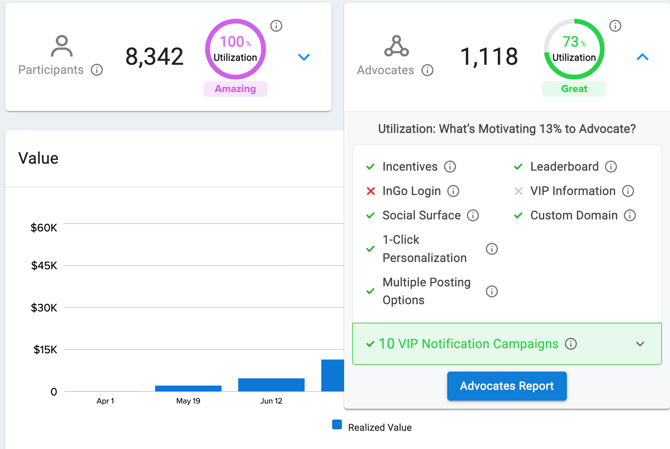
- On the Advocates card, click the arrow to expand it.
- Click Advocates Report.
- Use the Direct Share column to see which Advocates came from direct link sharing. Click Download to export the list.
Summary
An InGo Advocate is any participant who promotes your event by posting, sharing, or sending a personal invitation through InGo, or by sharing their personal InGo link and bringing in at least one click.
Advocates may be attendees, speakers, sponsors, exhibitors, VIPs, or other participant types. They are activated through tools such as the InGo Social Surface, VIP Notifications, VIPShare in emails, and Smart Personal Invites.
Advocates help generate measurable reach, referral clicks, and registrations for your event. You can view and download your Advocate list from the Advocates Report in the InGo Admin.
Frequently Asked Questions
Why did our Advocate count go up?
Since October 26, 2026, participants who share their personal InGo link and bring in at least one click count as Advocates (Direct Share Advocates). This applies to past events as well, so counts for existing events may have increased. Open the Advocates Report and look at the Direct Share column to see who they are.
Does a Direct Share Advocate count toward our purchased Advocates?
Yes. Direct Share Advocates are Advocates and are included in your Advocate count. For questions about your plan or contract, contact your InGo Account Manager.
Why does an Advocate have 0 posts?
Check the Direct Share column. If it shows Yes, they shared their personal link themselves instead of posting through InGo, and it brought in clicks. If it shows No, they became an Advocate another way, such as sending invitations.
Related Articles
- Smart Personal Invites: Overview and Setup
- Understanding Your Top-Level Event Metrics
- Start with your Growth Report
- How do I increase my social adoption (advocates) for my event?
Questions or need help? Contact support@ingo.me or submit a request through Contact Us.