
By default, the Social Surface lets participants share their post to several social networks. If you'd like participants to share to LinkedIn only, you can apply a ready-made InGo stylesheet (CSS) that hides the other networks.
The CSS is added in the Widget Configuration settings, and each group in your event has its own Social Surface. This article walks you through adding it, checking the result and undoing the change.
IMPORTANT: This customization applies per group. To show LinkedIn only across your whole event, add the CSS to the Social widget of every group.
You will Need
The LinkedIn-only CSS file URL:
https://cdn.ingo.me/custom-css/LinkedIn-only-social-50.css
Step 1: Open Widget Configuration
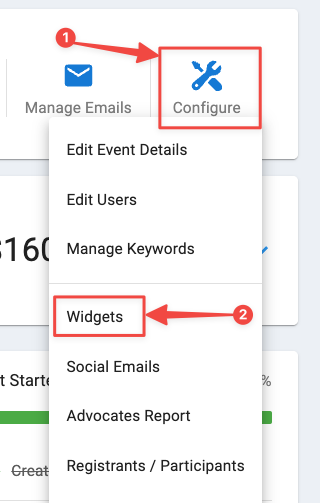
- On the Event Summary page, click Configure and select Widgets
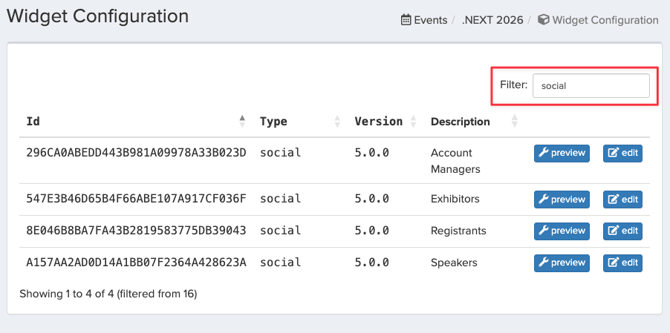
- In the Filter box, type social. Only the Social widgets are listed, one per group
Step 2: Edit the Group's Social Surface
- Find the group you want in the Description column
- Click edit next to it
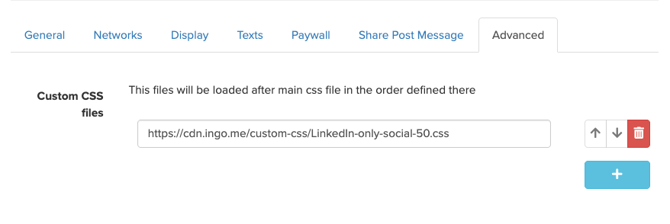
- Open the Advanced tab
IMPORTANT: This customization works only with Social widget version 5.0. Before you start, check that the Version column shows 5.0.0 for each group's Social widget (see Step 1). If a group uses an older version, switch to 5.0.0 in the same Edit window.
Step 3: Add the CSS File
- Under Custom CSS files, click the blue + button. A new empty field appears
- Paste the CSS URL into the field
- Click Save. You'll return to the Widget Configuration list
NOTE: Leave all other settings, such as Widget version and Custom JS files, unchanged.
Step 4: Repeat for Other Groups
Repeat Steps 1 to 3 for each group that should show LinkedIn only.
Step 5: Check the Result
- On the Widget Configuration page, filter by social again
- Click preview next to the group you updated
- Confirm the Social Surface shows only LinkedIn as a sharing option
Get All Networks Displayed Again
To undo the customization for a group, open its Social widget and go to the Advanced tab. Click the red trash icon next to the CSS URL, then click Save.
Important Notes
- New groups need the CSS too. Groups created later get their own Social widget without the CSS, so follow the steps above for each new group.
- Changes may not show right away. If you don't see the update, refresh the page or open it in a private browser window.
Frequently Asked Questions
Some participants still see other networks. Why?
The CSS was most likely added to only some groups. Filter by social and check the Advanced tab of each group's Social widget.
Will this change affect groups I didn't update?
No. Only groups whose Social widget includes the CSS show LinkedIn only.
I added a new group. Does it show LinkedIn only?
Not automatically. Add the CSS to the new group's Social widget by following the steps above.
Questions or need help? Contact support@ingo.me.