
Overview
If you manage multiple communities in InGo, you may occasionally need to move an event from one community to another — for example, if it was created in the wrong place, or as part of a broader community restructure. This guide walks you through how to do that, whether your event is already live or still sitting in Potential or Planned status.
Note: To move an event, you'll need Admin or Community Manager access to both the community the event currently lives in and the community you want to move it to.
Guide 1: Moving an Event That Isn't Potential or Planned
Step 1
From your event's Event Summary page, click Configure in the header section.

Step 2
Select Edit Event Details from the dropdown menu.
Step 3
Click the Community field and choose the community you'd like to move the event to. You can also start typing the community name to search for it.
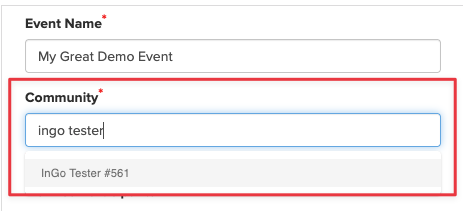
Step 4
Click Save in the bottom right corner. Your event has now been moved to the new community.
Guide 2: Moving a Potential or Planned Event
If your event status is Potential or Planned, the process is a little different, but just as quick.
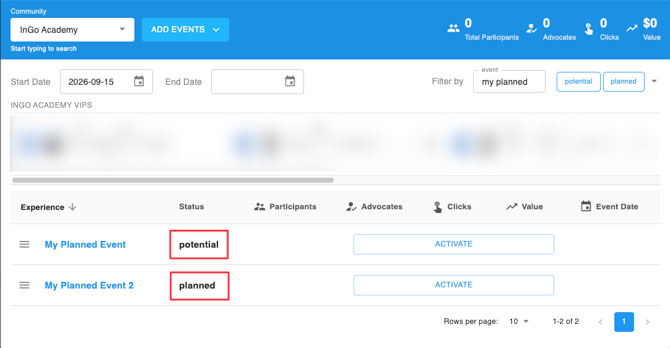
Step 1
Click Activate on your event.
Step 2
Click the Community field and type in the name of the community you'd like to move the event to.
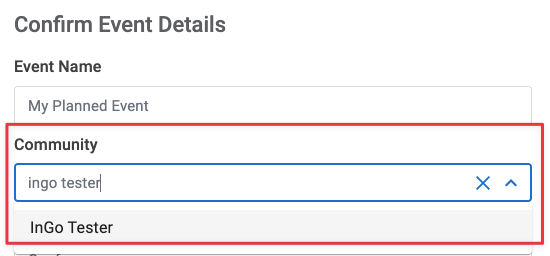
Step 3
Click Confirm in the bottom right corner. Your event has now been moved to the new community.
Note: This process also moves your event out of Potential/Planned status into Live or Testing. There's no way to move a Potential or Planned event to a different community without also activating it — activation is a required part of this flow, not an optional side effect.
Frequently Asked Questions
Do I need to reinstall my widget or request a new install code after moving communities?
No. Moving an event to a new community doesn't change its widget script or event ID — your existing installation will keep working exactly as it did before.
Will other users still be able to see this event after I move it?
Only users with access to the new community will see the event on their dashboard going forward. Anyone who only has access to the original community will no longer see it there, though they can still reach it directly via the event's URL. If your team needs continued visibility, make sure the right people are added to the new community.
What if the community I want isn't showing up in the Community field?
The Community field only lists communities you have Admin or Community Manager access to. If the one you need isn't listed, contact your InGo Admin or support@ingo.me to request access.
What if I need a brand-new community instead of moving into an existing one?
Setting up a new dedicated community is a different request from moving an event into one that already exists — it goes through your InGo Admin, or Account Manager at InGo. Reach out to them directly if that's what you need.