
⚠️ Beta Feature CRM Invites is currently in beta and actively being developed. Features and behavior may change as we continue to improve the experience. If you encounter any issues or have feedback, please reach out to your InGo Customer Success team.
CRM Invites allow you to import your professional contacts directly into the InGo widget and send personalized event invitations without ever leaving InGo. By connecting a supported CRM — such as HubSpot or Google Contacts — your network is instantly available to browse, select, and invite in just a few clicks.
CRM Invites are available to all InGo customers at no additional cost.
How Does It Work?
CRM Invites connect your existing contact database to the InGo widget in three simple steps:
- Connect — An attendee signs into their CRM account (HubSpot or Google Contacts) directly from within the InGo widget and authorizes read-only access. No data is ever modified or shared with third parties.
- Import — InGo pulls in the attendee's contacts and displays them in the widget, ready to browse and select. No exporting, no spreadsheets, no manual work.
- Invite — The attendee selects who they'd like to invite, reviews the pre-filled message, personalizes if desired, and sends — all without leaving InGo.
The result is a faster, more personal invitation experience that turns every attendee into a promoter of your event.
Smart Contact Suggestions
Not all contacts are created equal. To help attendees focus on the right people, InGo automatically generates an ideal attendee profile for each event and uses it to rank imported contacts by relevance. Contacts who are the best fit for the event appear at the top of the list — so attendees can act quickly on their most valuable connections without any manual filtering.
This ranking happens automatically in the background. Attendees simply see their most relevant contacts first.
Turning on Invites for a Group
CRM Invites are toggled on at the group level, meaning you can enable or disable them independently for each registrant group within your event.
- From your event summary page, locate the group you want to configure.
- Click the ellipsis icon (⋯) next to the group name.
- Select Edit from the dropdown menu.
- On the Edit Group page, scroll down to the Invite toggle and switch it on.
- Once enabled, configure the default Subject Line and Body text that attendees will see when sending invitations.
- Click Save to apply your changes.
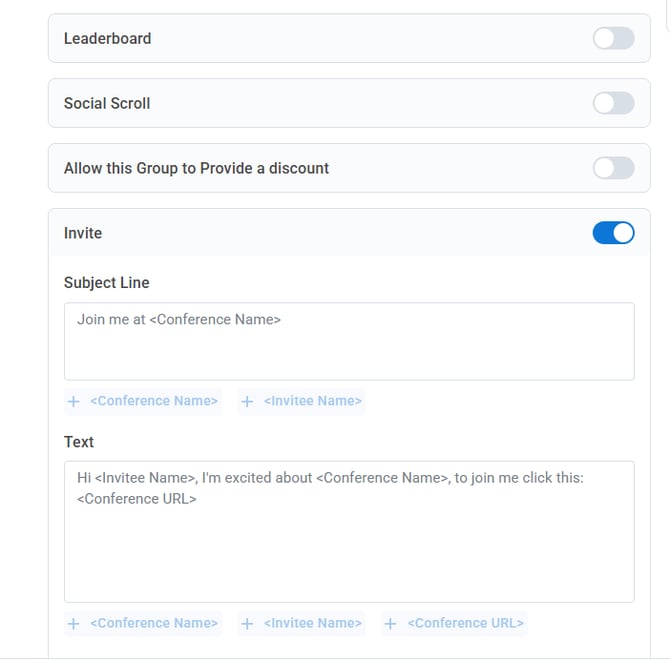
Note: The subject line and body text you configure here serve as defaults. Attendees may be able to personalize their message before sending, depending on your event configuration.
Using CRM Invites in the Widget
Once CRM Invites are enabled for a group, attendees can use the feature directly from within the InGo widget.
- Open the InGo widget from your event page and authenticate using a social network.
- Navigate to the Invite Contacts tatab at the top of the widget.
- Select how you'd like to import your contacts — you have two options:
- Option A — Connect your CRM
- Select a CRM to connect to.
- You will be prompted to sign in to your chosen CRM and authorize InGo's access. Complete the authorization flow.
- Once connected, your contacts will be imported and displayed in the widget, ranked by relevance to the event.
- Option B — Upload a CSV
- If you prefer not to connect a CRM, you can upload your contacts manually using a CSV file.
- Download InGo's contact template to ensure your file is formatted correctly before uploading.
- Once uploaded, your contacts will appear in the widget ready to browse and select.
- Option A — Connect your CRM
- Browse your contact list and select the individuals you'd like to invite.
- Review the pre-filled subject line and message, personalize if desired, and send.
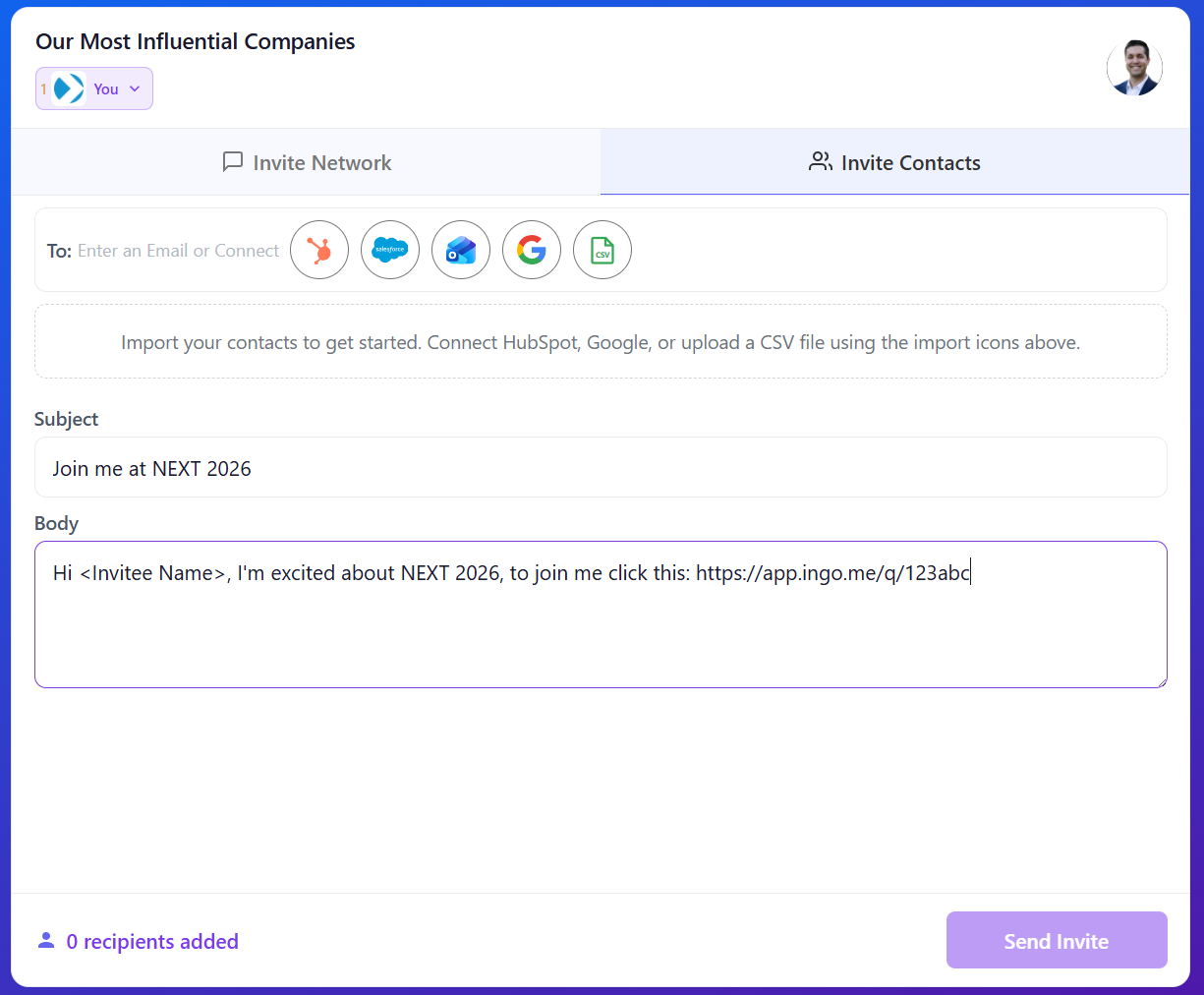
InGo currently supports HubSpot, Gmail, Salesforce, and Outlook as connection options.
A Note on App Verification
Some of the CRM integrations available through InGo are still going through their respective platform verification processes. During this time, you may see an "unverified app" warning banner when connecting your CRM account to InGo. This is expected and does not affect the functionality of the integration. InGo only requests read-only access to your contacts, and your data is never modified or shared with third parties.
If you have concerns about connecting your account, please reach out to your InGo Customer Success team for guidance.
Need More Help?
Still have questions? Reach out to our support team at support@ingo.me — we're happy to help you get CRM Invites set up and running smoothly.