
Overview and Guide
This article explains how to navigate to and configure Post Layout options for your social posts. Post Layout determines the available image or video formats, the size of the background asset, and whether additional content—such as personalized user data or a company logo—can be dynamically injected into the final graphic.
Setting Up a Post Layout
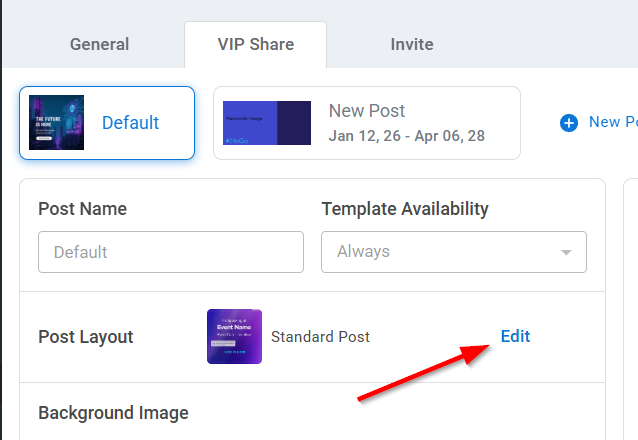
To get started, navigate to the Edit Group screen and select the VIPShare tab. On this page, you’ll find the Post Layout field. Clicking on the Edit button opens a pop-up modal where you can choose from available layout options, including Layout Type and Background Shape.
Layout Type
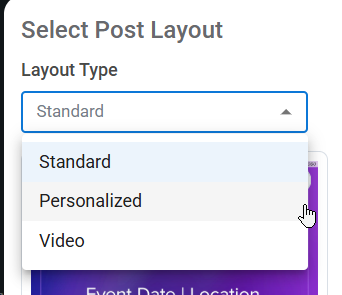
-
Standard – Non-personalized layouts. Graphic only.
-
Personalized – Allows dynamic content to be injected using a user’s personal or company information.
- Video – Supports video-based layouts with flexible sizing and no fixed shape.
Background Shape
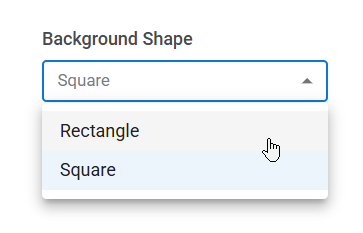
-
Square – 1080 x 1080px
-
Rectangle – 1200 x 628px
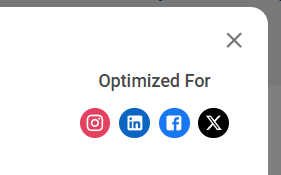
In the top-right of the pop-up, the Optimized For section will display which platforms the images may look best on.
Once your combination has been selected, all available options will display. Clicking on one will highlight it and then clicking OK in the bottom-right will lock in that selection and close the modal.
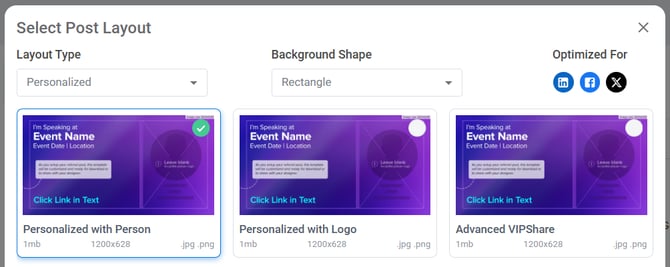
Note: Advanced VIPShare is only available when using Rectangle as a background shape at this time. Support for Advanced VIPShare on Square posts will be added in the future.
Frequently Asked Questions
-
Can I enable both personalized and non-personalized layouts?
Yes! You can make up to four posting options per InGo event group. Each option can have its own Post Layout selection, allowing end users to choose between personalized and non-personalized graphics when using the widget. -
What’s the difference between Standard and Personalized layouts?
Standard layouts are non-personalized and use static content only. Personalized layouts dynamically inject information such as a user’s name, profile image, or company details into the final graphic. -
Why don’t video layouts have a shape option?
Video layouts are designed to be flexible and automatically adapt to supported sizes, so a fixed background shape (square or rectangle) isn’t required. -
Why do I only see one option for Standard layouts?
Standard layouts include a single option per shape by design. If you need additional customization or dynamic content, consider using a Personalized layout or Advanced VIPShare. - What is Advanced VIPShare and when should I use it?
Advanced VIPShare is available for rectangle layouts and allows you to customize additional fields and control where they appear within the graphic. It’s best suited for advanced branding or highly customized layouts.
Wrapping Up
Once your Post Layout is configured, end users will see the available layout options directly in the widget when creating their social posts. These settings control how content is rendered, including format type, personalization behavior, and available sizes.
If you’d like to expand customization further, consider enabling Advanced VIPShare for supported layouts or reviewing related configuration options. If you run into issues or don’t see expected options, contact our support team at support@ingo.me for further assistance.